





On Your Personal Page

Go to https://www.facebook.com in a web browser. Using your preferred web browser, go to Facebook's main website. Log in with the email address and password associated with your Facebook account if you aren't logged in automatically.

Click ⏷. Click the black downward arrow in the far-right of the blue bar at the top of your Facebook page. This opens a drop-down menu with additional options.

Click Settings. It's the second to last option in the drop-down menu.
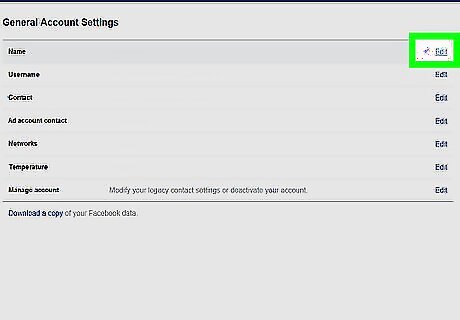
Click Edit across from your name. Your name is at the top of the settings menu.
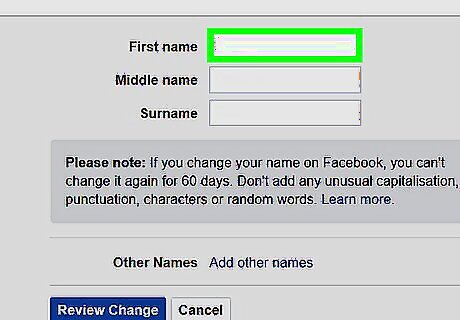
Enter your new name. Enter a new first, middle, and last name to change the name that appears on your personal Facebook page. Facebook names should be the actual name you use in your everyday life. You can add a nickname, title, or maiden name by clicking "Add other name" below the name text fields and choosing the type of name you want to add.
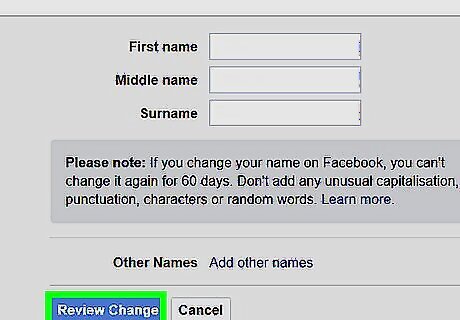
Click Review Change. It's the blue button at the bottom of the "Name" box.
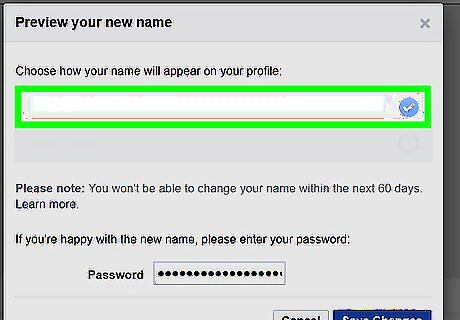
Click the circle that shows how you want your name to be displayed. You will be presented with a few options for how your name will be arranged. Click the radial button next to the option you like best. The circle will turn blue with a white checkmark when it's selected.
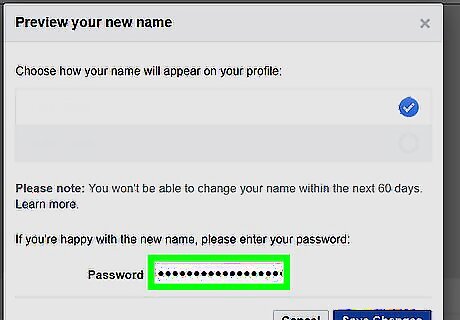
Type your Facebook password. When you are happy with the way your name is displayed, type your Facebook password in the box at the bottom of the popup,
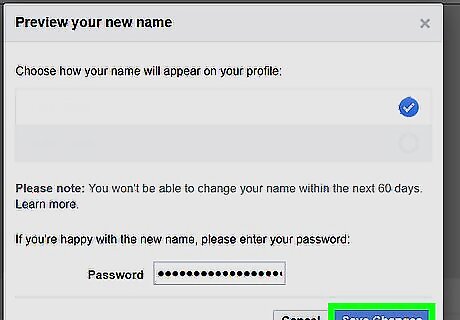
Click Save Changes. It's the blue button at the bottom of the pop-up window. Your display name will be changed. Once you change your Facebook name, you cannot change your name again for another 60 days.
On a Public Page

Go to https://www.facebook.com in a web browser. Using your preferred web browser, go to Facebook's main website. Log in with the email address and password associated with your Facebook account if you aren't logged in automatically.
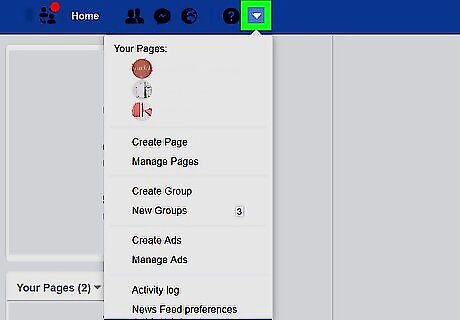
Click ⏷. Click the black downward arrow in the far-right of the blue bar at the top of your Facebook page. This opens a drop-down menu with additional options.

Click Manage Pages. This will display all the pages that you have administrative privileges for.
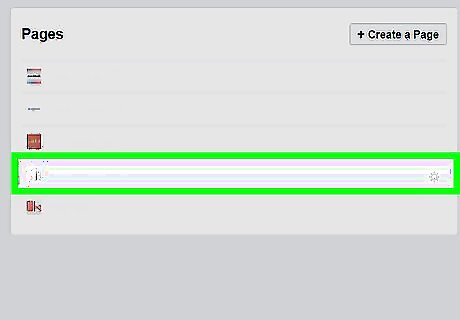
Select the Facebook page you want to rename. Click the page you want to rename to open it.

Click About. It's in the column to the left, below the current Facebook page name and profile image. You may have to click "⏷ See More" to see the "About" option in the left-hand column.
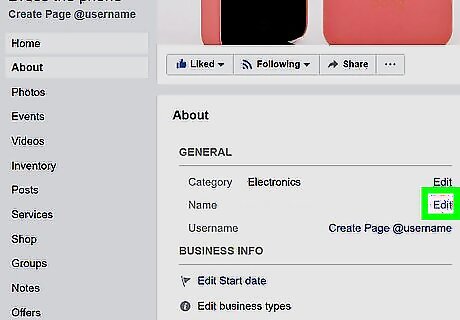
Click Edit across from the "Name" section. It's the second option at the top of the page in the "General" heading. This opens a pop-up window.

Type a new page name and click Continue. It's a blue button in the bottom-right corner of the pop-up window. Type the new name in the box labeled "New Page Name". The name should be under 75 characters and accurately represent what the subject of your page. Click "Continue" in the lower-right corner when you are finished.
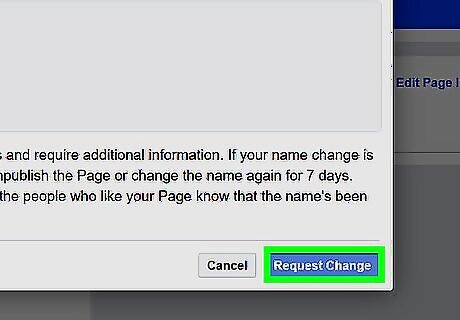
Click Request Change. It's the blue button in the bottom-right corner of the pop-up window. Facebook reviews all name changes and can take up to three business days for the change to be approved.
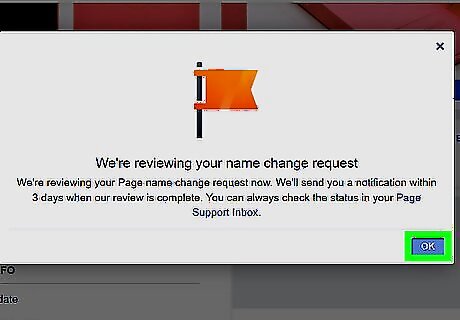
Click OK. It's a blue button in the bottom-right corner of the pop-up window. This acknowledges that you understand that the name change for your page must be reviewed and approved before the change will take place on your public page.










Comments
0 comment