



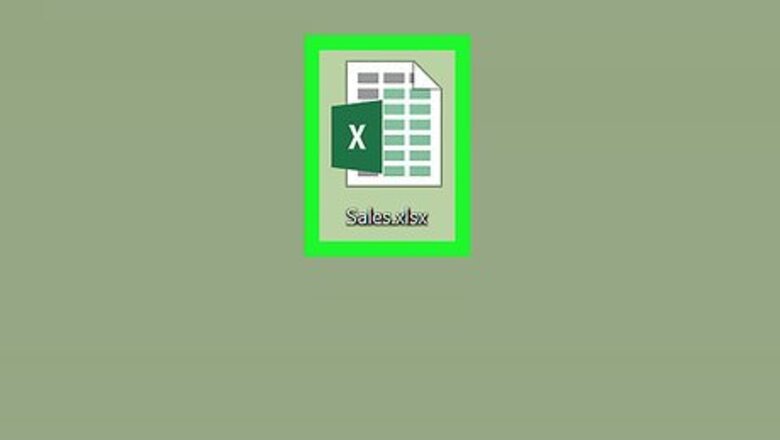

Open an Excel spreadsheet file. Every Excel document lists all of its worksheets on a tabs bar in the lower-left corner of the spreadsheet.
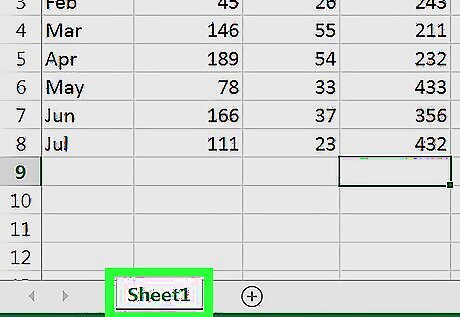
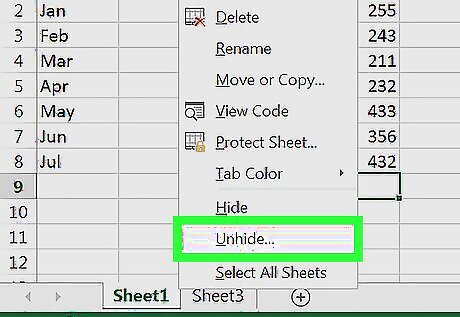
Right-click a sheet on the tabs bar. Find a list of all the sheets in this file in the lower-left corner of your spreadsheet, and right-click any tab. It will open a pop-up menu.
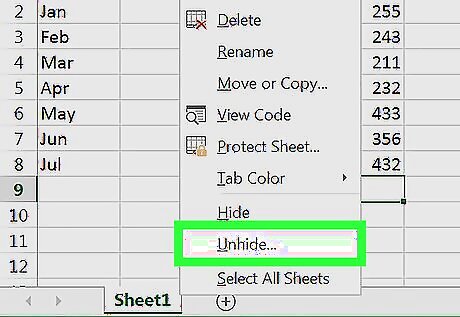
Select Unhide on the menu. This option will open a new pop-up window, and show you a list of all the hidden sheets in this document. If this option is grayed out on the pop-up menu, it means this document doesn't contain any hidden worksheets.

Select a sheet on the list. Excel's Unhide tool only allows you to unhide one sheet at a time. You can only select one sheet to unhide from the list here.

Click OK in the pop-up. This will instantly unhide and reveal the selected sheet in your document. You can see the unhidden sheet on the sheets bar in the lower-left corner of your screen.
Unhide the rest of your hidden sheets one by one. Right-click a sheet tab, click Unhide, select a different sheet, and click OK. You will need to repeat these steps for every other sheet you want to unhide.









Comments
0 comment