




Using the Gmail App
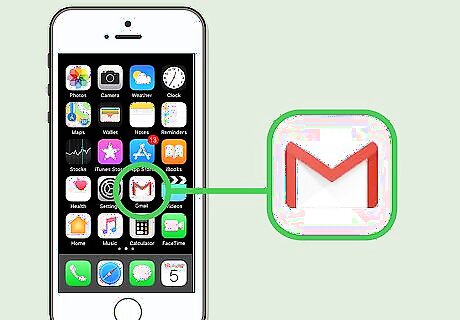
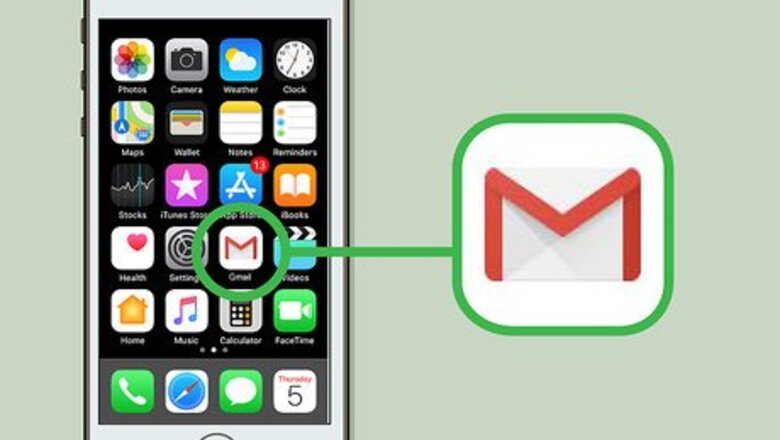
Open Gmail on your phone or tablet. It's the red and white envelope icon typically found on the home screen (iPhone/iPad) or in the app drawer (Android).
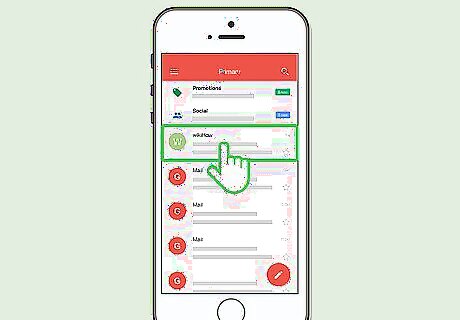
Tap the message you want to snooze. This opens the message.
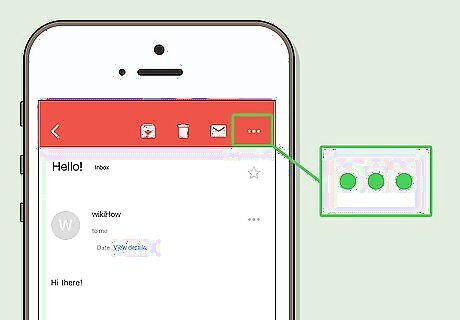
Tap the ⁝ (Android) or ⋯ (iPhone/iPad) menu. It's at the top-right corner of the screen.
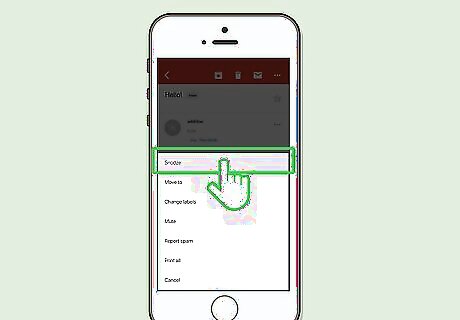
Tap Snooze. Your snooze options will appear.
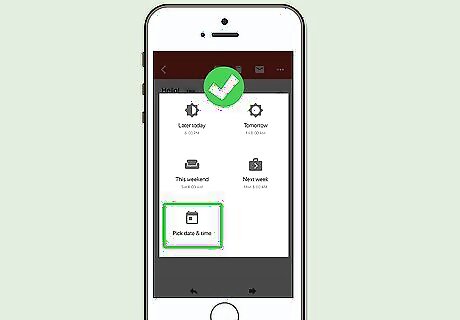
Select a date and time. Choose one of the suggested options, or click Pick date & time to set your own. The message will be removed from your inbox until the selected time. To snooze more than one message, select the messages to be snoozed in the inbox, open the menu, and then tap Snooze. To view your snoozed messages, tap the ≡ menu at the top-left corner of the inbox, then tap Snoozed.
Using a Computer
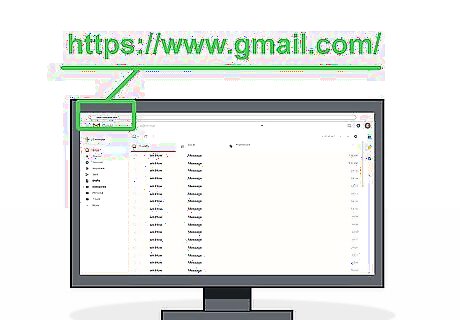
Open Gmail in a web browser. You can snooze emails using any web browser on your computer.
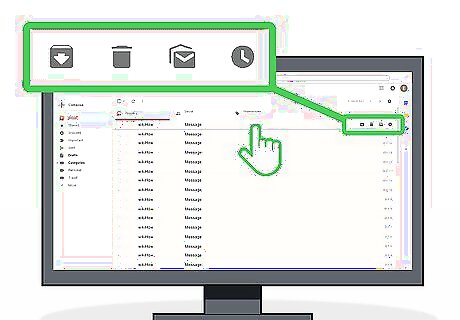
Hover your mouse cursor over the message. Several gray icons will appear on the message, including a gray clock. If you don't see the gray clock, you've probably disabled ″conversation view″ (the message-grouping feature) at some point. You'll need to turn it back on to use snooze. Here's how to do it: Click the gear icon at the top-right corner of the inbox. Click Settings. Scroll down and select Conversation view on. It's almost halfway down the page. Scroll down to the bottom and click Save Changes.
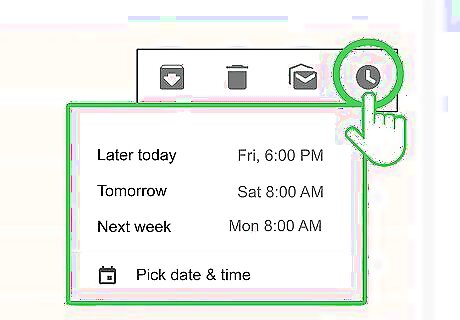
Click the clock icon. Your snooze options will appear.
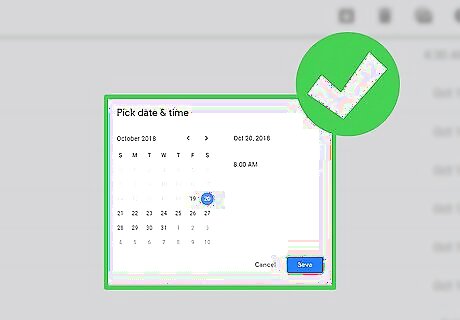
Select a date and time. Choose one of the suggested options, or click Pick date & time to set your own. The message will be removed from your inbox until the selected date and time. To snooze more than one message at a time, check the boxes next to each message, and then click the clock icon that appears at the top of the inbox. To view your snoozed messages, click the ≡ menu at the top-left corner of Gmail, then click Snoozed.











Comments
0 comment